
How do I add a clickable link to a Custom Activity?
Adding a clickable link to a custom activity is a great way to direct mobile app users to external resources, policies, or websites, all from within the Kinatico Compliance app.
Before You Start
What You'll Need:
- Administrator access to the Kinatico Compliance portal with the ability to create or edit custom activities
- An activity page open that you want to add a clickable link to
Time Required: 1 minute
Instructions
Step 1: Add a Text View element
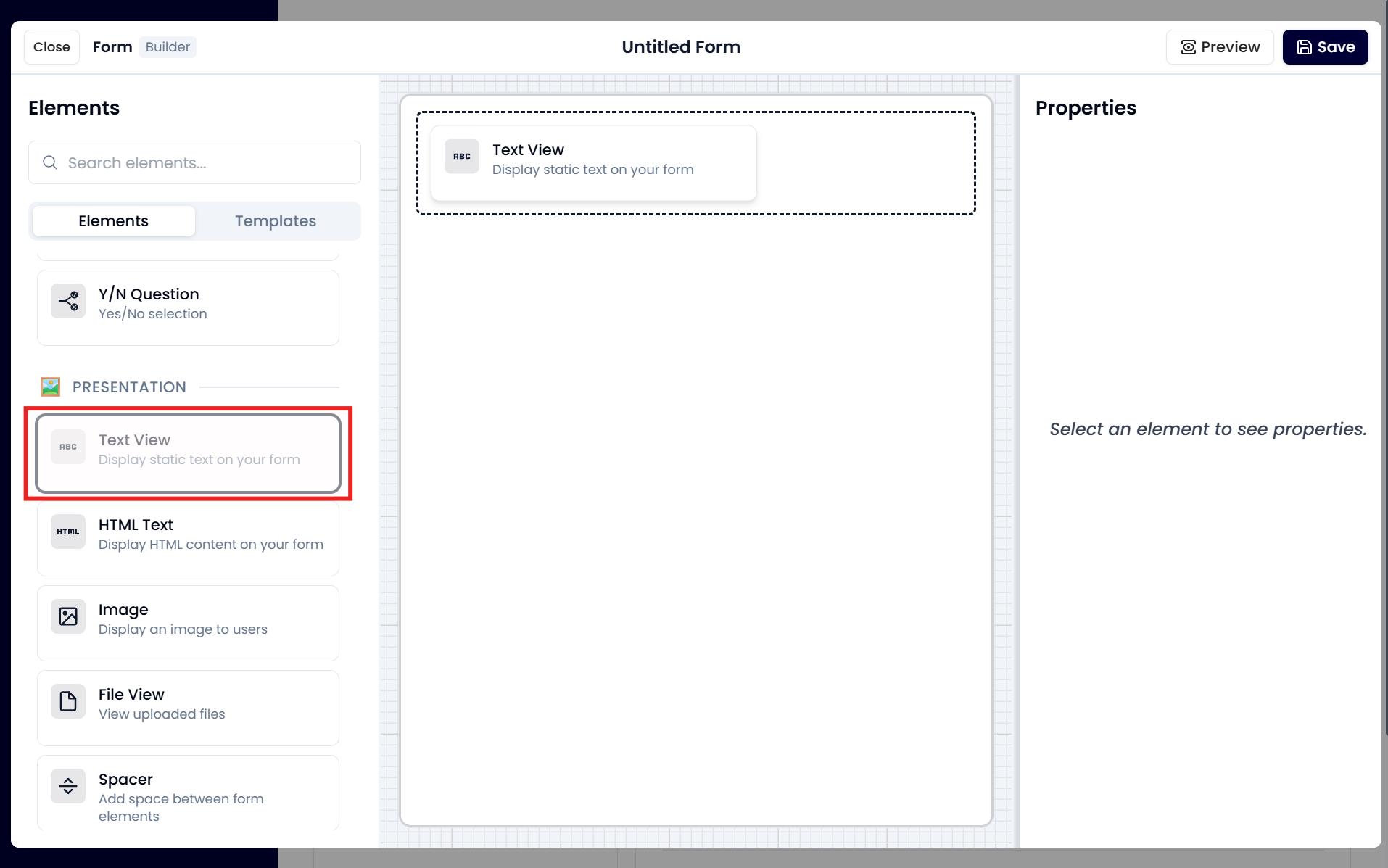
- In the left sidebar of the Form Builder, locate the Presentation section and drag the Text View element onto the central section of your page.
⚠️You can only add clickable links to a Text View element (not an HTML Text element)
Step 2: Enter your display text and the link
- Click on the Text View element you just added to open its properties panel.
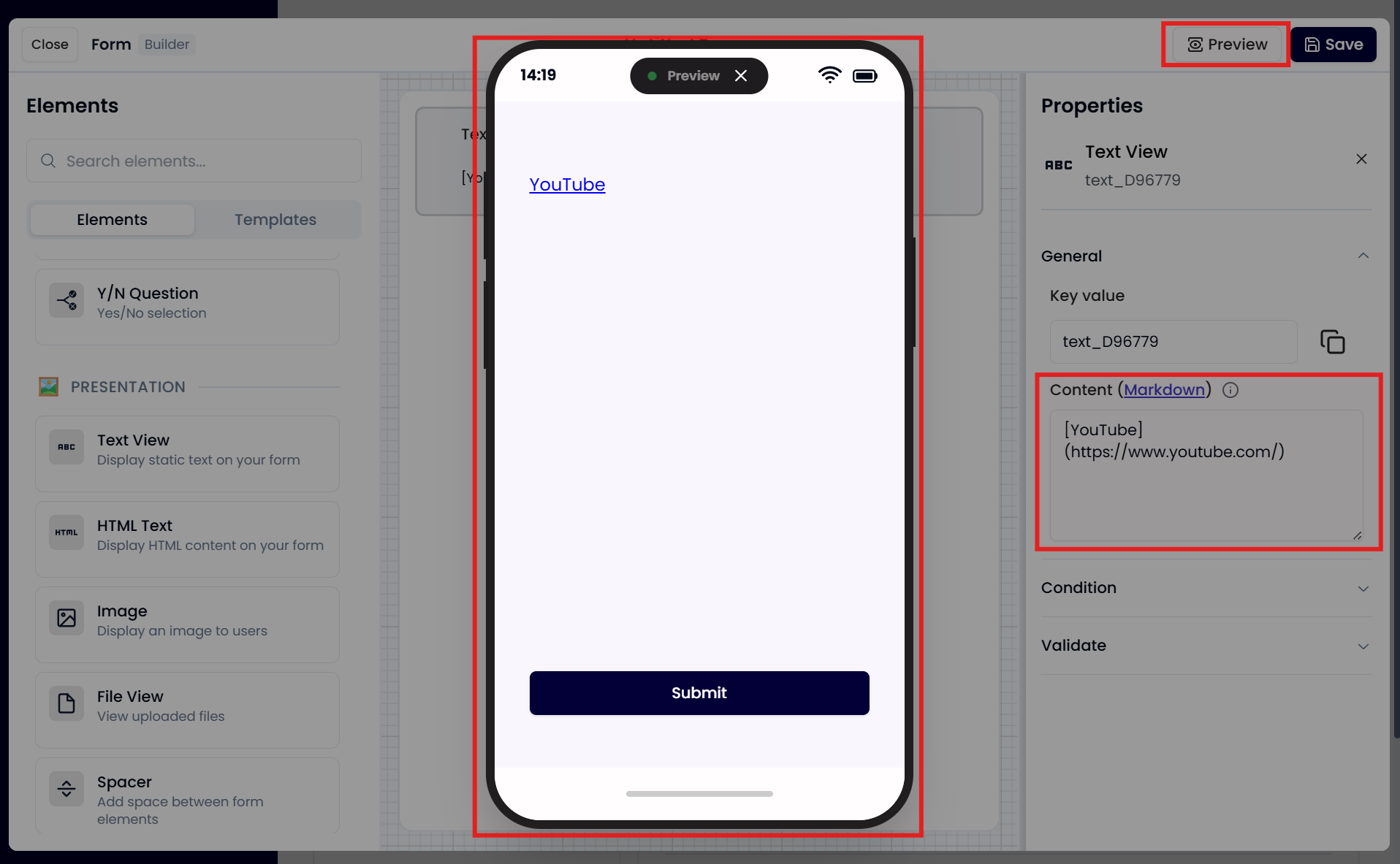
- Under Properties > General, click the Content box
- Enter the display text inside square brackets
[ ]. This is what users will see and tap. - Without leaving a space, enter the URL inside round brackets
( ). This is where users will be taken when the display text is tapped.
Example:[YouTube](https://www.youtube.com/)
This will display the word YouTube as a clickable link that opens the YouTube website when tapped.
Step 3: Save your changes
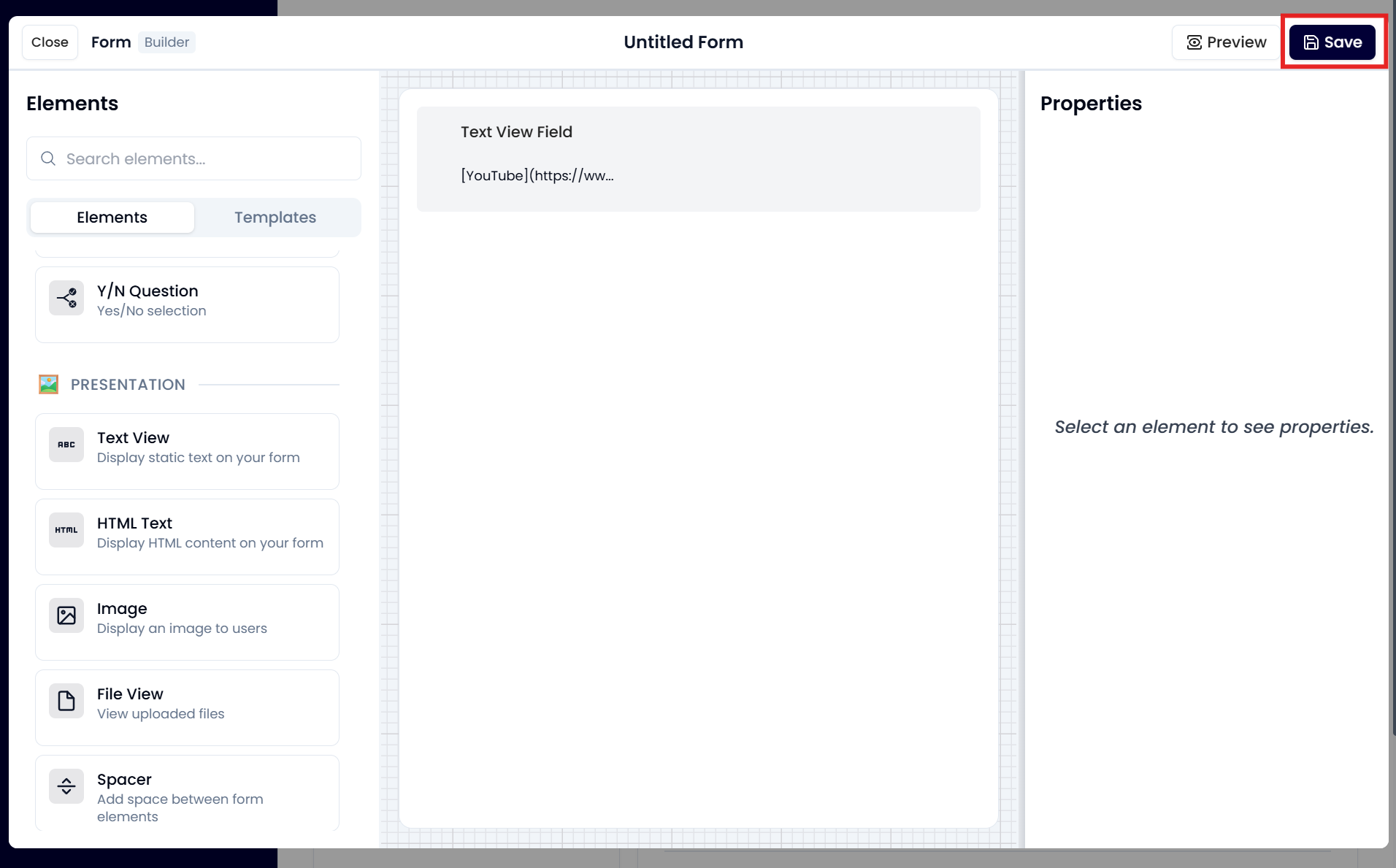
- Click Save in the top right corner to save the page changes.
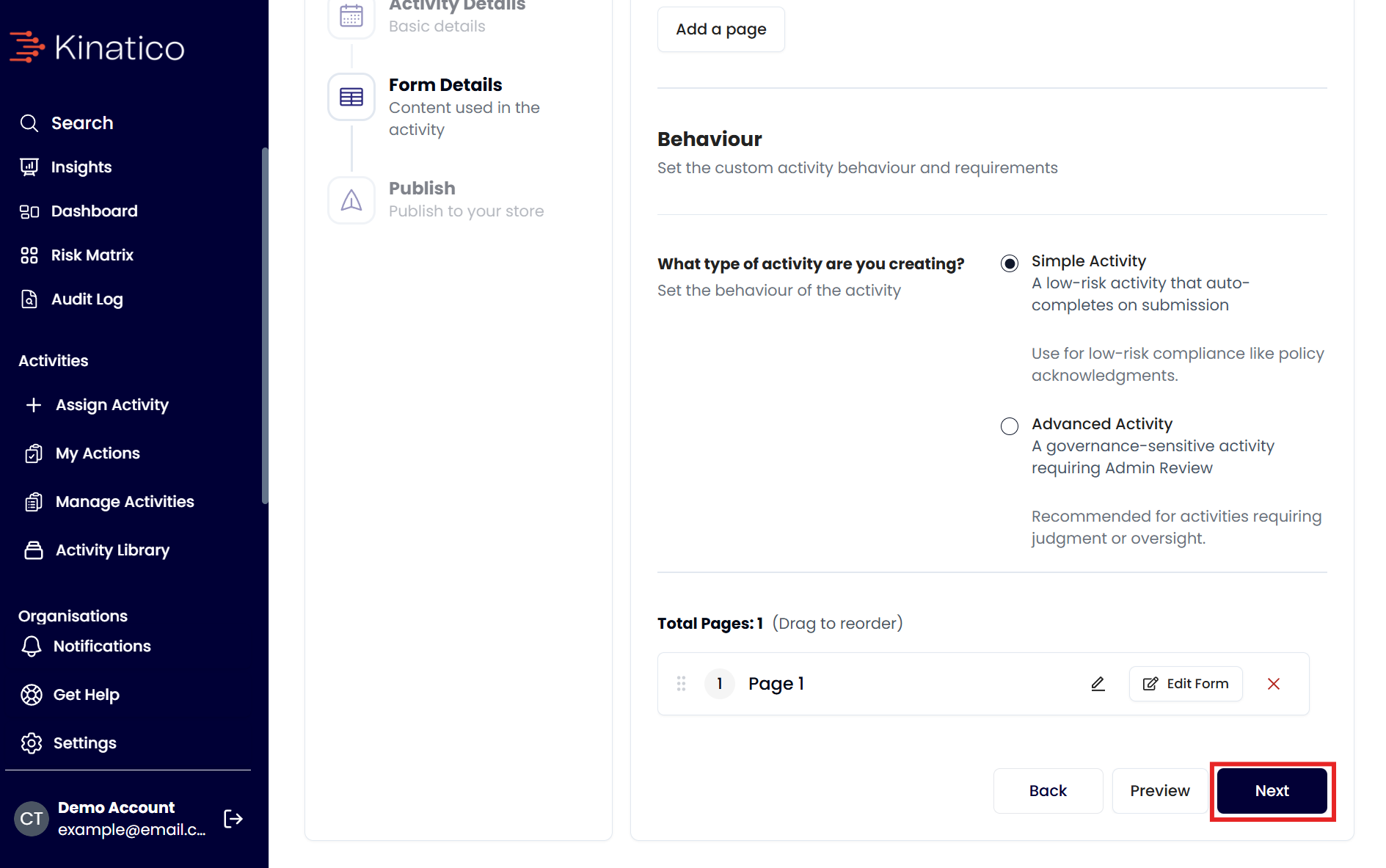
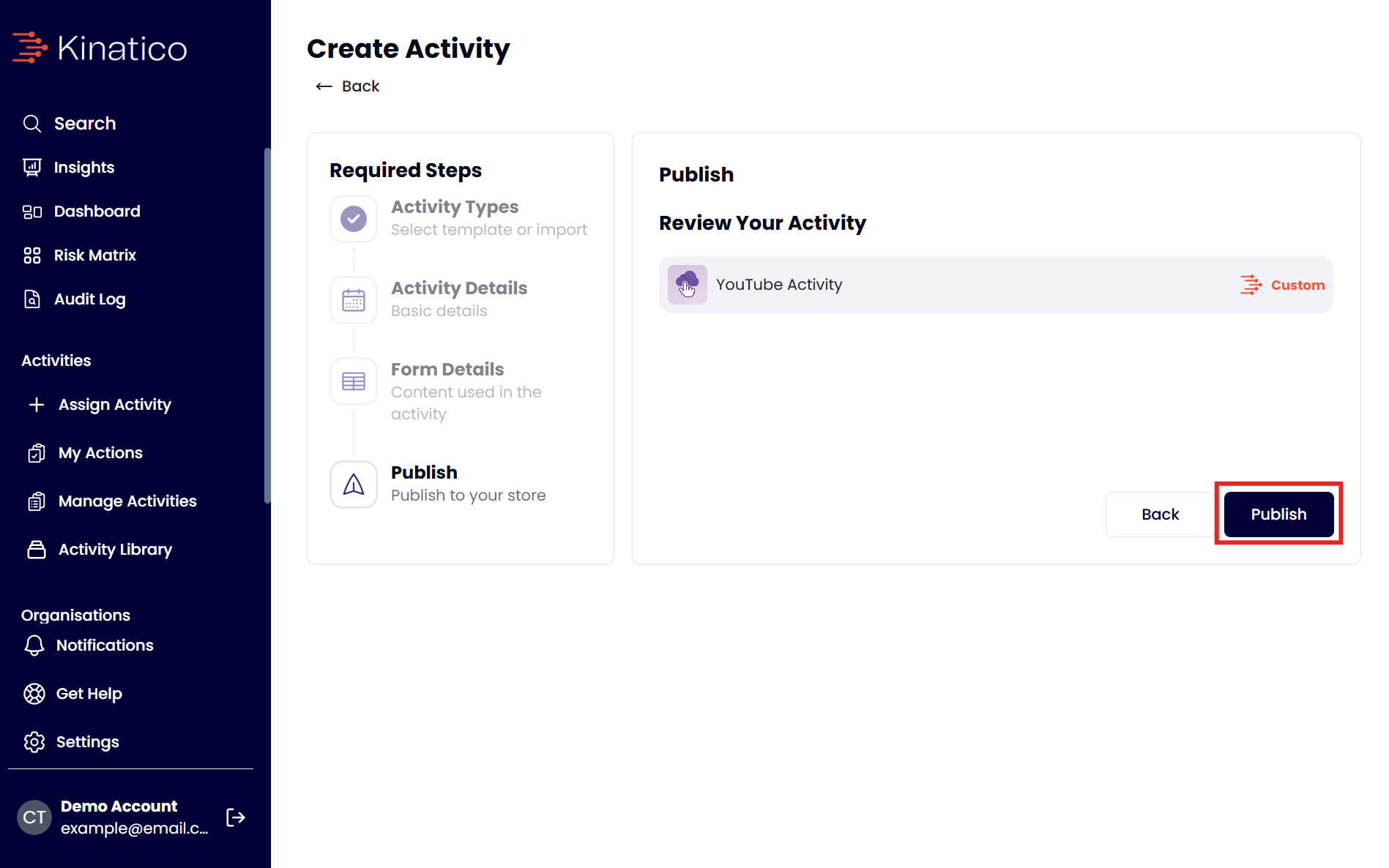
- Click Next in the bottom right corner, then Publish to save the changes to the activity.
Common Questions
Q: Can I add multiple links on the same page? A: Yes. You can add multiple Text View elements to a single page, each containing its own clickable link.
Q: Can I add a link within other text? A: Yes. You can include a clickable link within a longer sentence in the same Text View element. For example: Please review our [Workplace Policy](https://yourwebsite.com/policy) before proceeding.
Need additional help?
Still have questions? Contact us by selecting Get Help from the main navigation, then Email to send us a message. Alternatively, email our support team at cxsupport@kinatico.com